Clip Tips for iOS
Clip recipes from any website or blog
ChefTap can clip recipes from any website that is in English.
You might be able to clip recipes that are in other languages, depending on the site.
Add ChefTap to your Share menu
It just takes a minute and makes clipping much easier.
- From your regular browser, tap the Share icon
- Tap the More icon. You may have to swipe left to see it.

- Enable ChefTap, then tap Done.


When you want to clip a recipe, just tap the Share icon, then ChefTap.

Which recipes can you clip?
- Make sure the page you want to clip only has one recipe on it.
- Ingredients and steps must be on the same page.
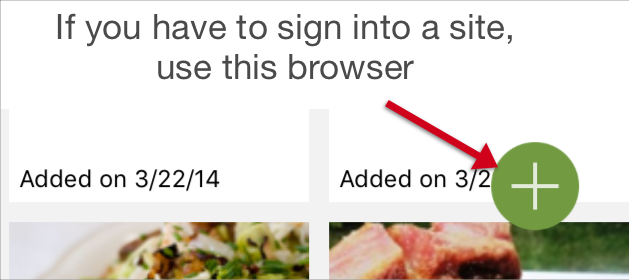
- If you have to be signed in to see a recipe, use the browser inside of ChefTap. Tap the + button at the bottom of the recipe list.
- The recipes that clip the best are the ones that look like, well...recipes, with a list of ingredients and instructions. Some recipes are more like stories, with a lot of conversational text. You can clip those, too, but you may have to clean them up a bit.
If there are missing steps or ingredients:
- Tap Edit...

- ...then Show Extra Text at the bottom of the page.
- Add any line to the recipe by tapping on it...

- ...then selecting an option such as Ingredient, Step, etc.


Other things to try:
- If there is a print version of the recipe, try clipping that instead.
- If you are on a mobile site, see if you can find the same recipe on the desktop version of the site.