Clip Tips for Android
Clip recipes from any website or blog
ChefTap can clip recipes from any website that is in English.
You might be able to clip recipes that are in other languages, depending on the site.
Share recipes from your browser to ChefTap
When you find a recipe that you want to clip:
- Tap the Menu button in the upper right corner of your browser.

-
Tap Share or the share icon (
 ).
).
- Select ChefTap from the list of apps that appears.
Which recipes can you clip?
- Make sure the page you want to clip only has one recipe on it.
- Ingredients and steps must be on the same page.
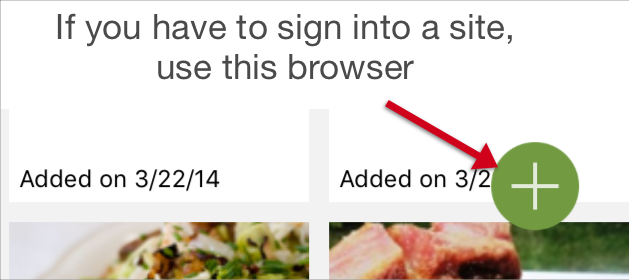
- If you have to be signed in to see a recipe, use the browser inside of ChefTap.
- Tap the + button at the bottom of the recipe list.
- Select Open a Browser at the top of the list.
- The recipes that clip the best are the ones that look like, well...recipes, with a list of ingredients and instructions. Some recipes are more like stories, with a lot of conversational text. You can clip those, too, but you may have to clean them up a bit.
If there are missing steps or ingredients:
- From the recipe, tap the Menu button in the upper right corner.
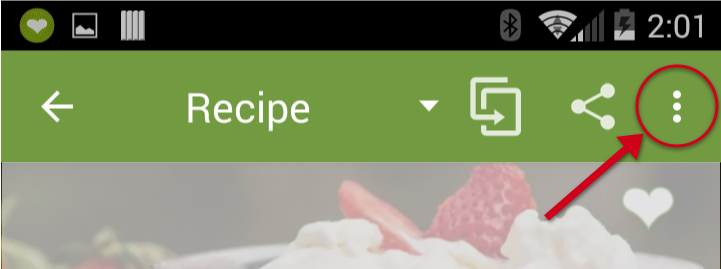
- Select Retrieve Missing Text.
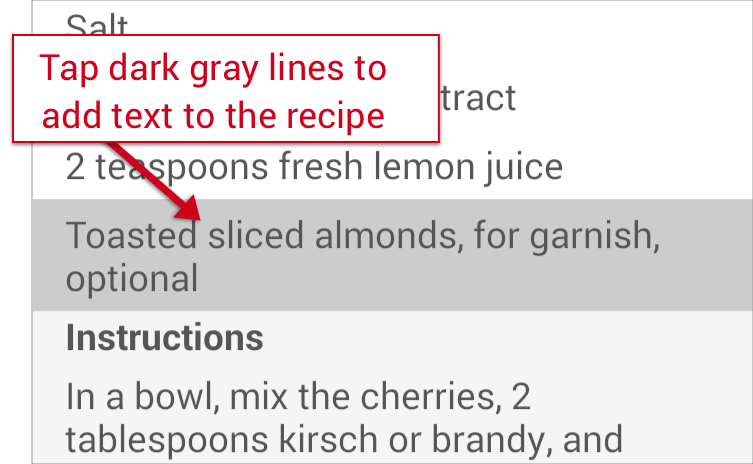
- Extra text from the original web site will appear. Tap any dark gray line to add it to the recipe,
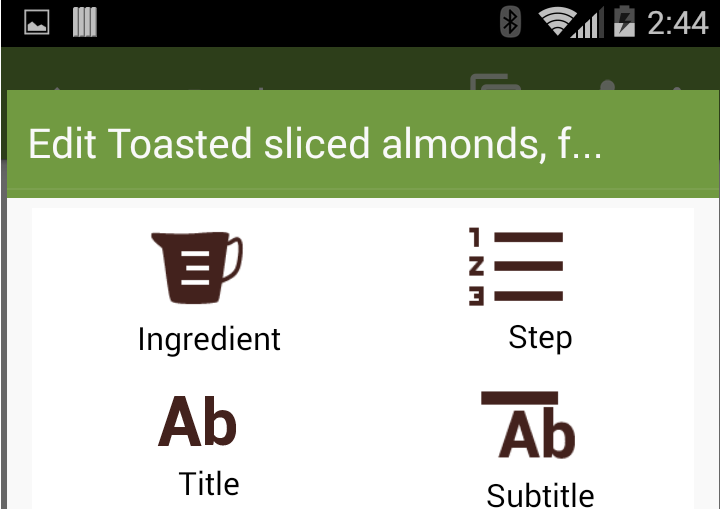
- Select an option such as Ingredient, Step, etc.
Other things to try:
- If there is a print version of the recipe, try clipping that instead.
- If you are on a mobile site, see if you can find the same recipe on the desktop version of the site.